
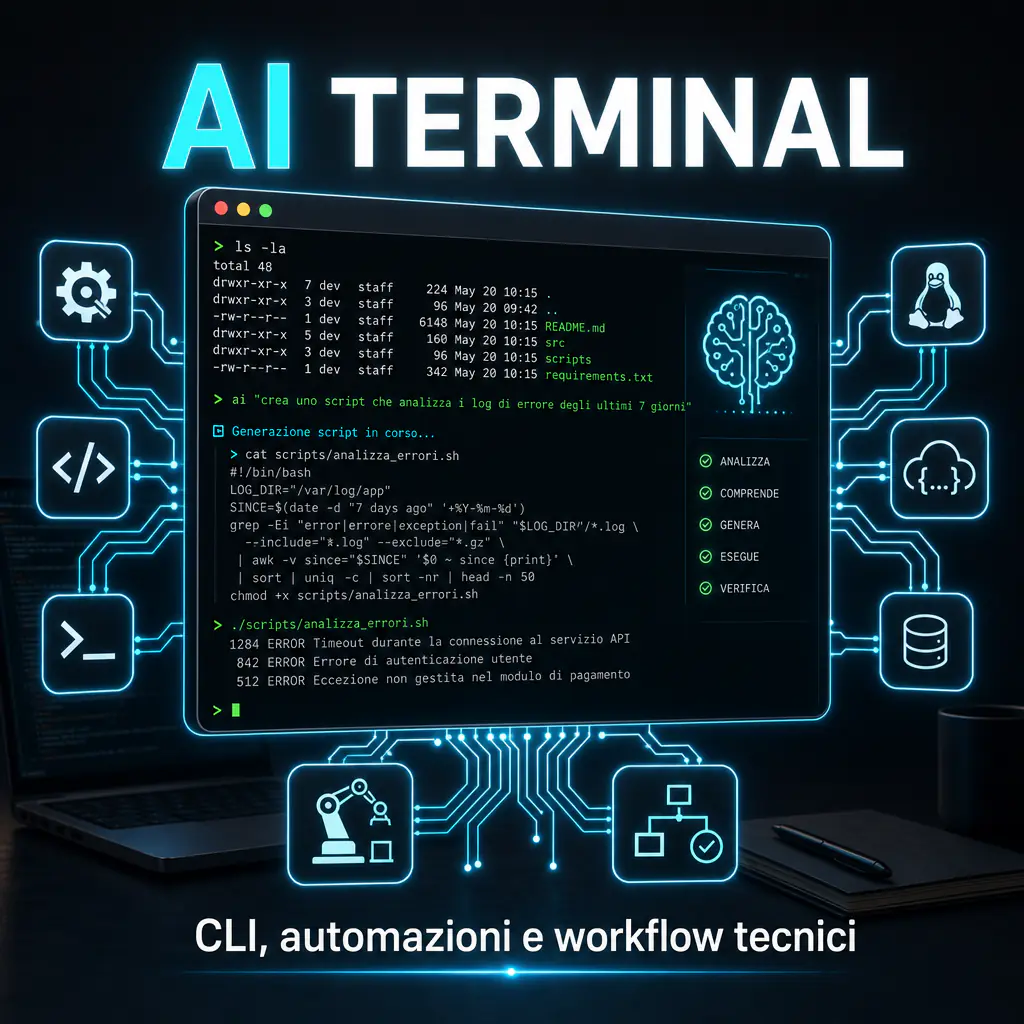
AI terminal means using artificial intelligence directly from the command line, within the environment where developers, system administrators, and technical teams already execute commands, scripts, tests, deploys, and automations. It is not just a chatbot in the terminal: it is a different way of working. AI can read the project context, suggest commands, modify files, explain errors, generate scripts, and link technical activities into faster and more controlled workflows.
In recent years, interest in terminal AI tools has grown for a practical reason: many technical activities do not start from a web page, but from a shell. Installing packages, querying APIs, analyzing logs, running tests, managing repositories, and automating repetitive processes are operations that already happen in the command line. Bringing AI to this point in the flow reduces unnecessary steps and makes it more natural to ask for support while working.
For a B2B company, however, adopting an AI terminal does not mean installing the first available tool. It means understanding where it can create value, what permissions to grant, how to protect data and code, what costs to expect, and how to prevent an overly autonomous assistant from making unwanted changes.
AI Terminal: What it Means to Use Artificial Intelligence from the Command Line
An AI terminal is an environment in which a language model or an AI agent works via the command line. The user writes a request in natural language, and the tool can transform it into commands, analyze output, propose fixes, read authorized files, or orchestrate multiple steps.
The difference compared to a normal shell command is simple: with the traditional command line, you must know the syntax, options, and correct sequence. With AI, you can describe the goal: “find the largest files in this folder,” “explain why this test is failing,” “create a script to export this data to CSV,” “check if this API returns errors.”
The value is not in replacing technical expertise. It is in reducing friction, manual searching, and time lost on repetitive activities. An experienced operator remains responsible for decisions but can delegate part of the operational work to a contextual assistant.
Differences Between Web Chatbots, AI-powered IDEs, and AI Terminals
A web chatbot is useful for reasoning, writing drafts, explaining concepts, and getting examples. The limit is that it often works outside the operational context. You have to copy errors, paste pieces of code, describe folders, and manually report outputs.
An AI-powered IDE, on the other hand, is closer to software development. It can read open files, suggest completions, generate functions, and help with refactoring. It is very convenient for those who work all day inside an editor like VS Code, JetBrains, or similar environments.
The AI terminal is positioned even closer to execution. It is useful when the work is not just about writing code, but also about running commands, checking logs, managing dependencies, using Git, creating scripts, querying services, running tests, and linking different tools.
| Environment | Strength | Main Limit |
|---|---|---|
| Web Chatbot | Explanations, strategy, content, examples | Poorly connected to the real project context |
| AI-powered IDE | Writing and modifying code inside the editor | Less natural for system tasks, shell, and automations |
| AI Terminal | Commands, scripts, logs, tests, repositories, and technical workflows | Requires strong control over permissions and actions |
Why the Text Interface Changes the Way of Working
The command line is already a space for automation. Every command can be repeated, saved, concatenated, inserted into a script, or used in a pipeline. This is why AI in the terminal has a different potential compared to a purely conversational interface.
When an AI assistant works in the shell, it can help transform generic requests into concrete steps. It can propose a command, explain what it does, ask for confirmation before executing it, and interpret the result. This makes tasks that previously required technical memory or documentation searches more accessible.
Risk grows along with power. A wrong command can delete files, modify configurations, send sensitive data, or break an environment. This is why a good AI terminal setup must include confirmations, sandboxes, logs, access limits, and human review.
How an AI CLI Works in Technical Processes
An AI CLI is a tool installed and used from the terminal that allows interaction with an AI model via commands. Some tools are oriented toward coding, others toward technical productivity, and others toward managing agents that can read files, modify code, or use external tools.
Solutions like OpenAI Codex CLI, GitHub Copilot CLI, and Gemini CLI show the market direction: AI is not staying closed in a chat but is entering developers’ operational tools.
In practice, the user starts the CLI, grants a certain level of access to the project, and describes an activity. The assistant can analyze the available context, propose a plan, generate changes, execute permitted commands, and return a summary.
Prompt, Commands, Local Files, and Operational Context
Operation depends on four elements: prompt, commands, files, and context. The prompt indicates the goal. Commands are the operational actions. Local files are the material to work on. Context is the set of information that allows the AI to understand what is happening.
A simple example: a developer can ask “find why the build is failing.” A well-configured AI command line can read the build output, identify the error, find the involved file, propose a fix, and suggest rerunning the test. In a traditional flow, these steps would require more manual research.
Context is the deciding factor. If the assistant only sees a single line of error, it will give a generic answer. If it can read the project structure, packages, tests, configuration files, and logs, it can produce much more useful guidance. But more context also means more attention to privacy and permissions.
Integration with Repositories, Scripts, APIs, and Development Environments
The terminal is the point where many technical tools meet. Git, Docker, npm, Composer, WP-CLI, Makefile, curl, SSH, database clients, and cloud tools often pass through the shell. This is why an AI terminal on Linux can become a very powerful operational assistant.
In an agency or technical department, an AI CLI can be used to:
- explain complex commands before executing them;
- generate Bash, Python, or Node scripts for repetitive activities;
- analyze application logs or deploy errors;
- write control queries on databases and APIs;
- prepare operational checklists for WordPress or WooCommerce maintenance;
- support CI/CD pipeline debugging;
- create WP-CLI commands for audits, users, plugins, and content.
The point is not to let the AI do everything. The point is to use it as an acceleration layer on top of already reliable tools, maintaining human control over critical steps.
Concrete Use Cases for Software Development and Automations
The best way to evaluate an AI terminal is to start with use cases. If it is introduced just because AI is new, the risk is creating confusion. If, instead, it is applied to specific problems, it becomes a measurable tool.
In a B2B context, the most interesting cases are those involving code, automations, technical maintenance, reporting, and integrations. These are often repetitive activities, but variable enough not to be solved with a single fixed script.
Debug, Refactoring, and Generation of Repeatable Commands
One of the most immediate uses is debugging. AI can read an error, explain its meaning, indicate the probable file, and suggest a fix. This does not eliminate technical review but reduces the time needed to reach the cause of the problem.
In refactoring, an AI CLI can help rename functions, update imports, standardize patterns, propose tests, or identify duplications. In these cases, it is important to work with a clean Git, dedicated branches, and diff review before merging.
For repeatable commands, the advantage is even more practical. A technician can ask the tool to generate a sequence to compress images, check redirects, export data, validate sitemaps, or perform performance checks. Once verified, that command can become part of a stable procedure.
This connects well with the theme of command-line agents: an open source CLI coding agent can be interesting when the company wants more control over code, configuration, and execution environment.
AI Terminal for Workflows: Reports, Deploy, Scraping, and Recurring Tasks
An AI terminal for workflows becomes useful when the activity requires multiple steps, not just a single answer. For example: collecting data from an API, cleaning it, saving it to CSV, generating a summary, and sending the result to another system.
In a company using Make.com, WordPress, WooCommerce, and marketing tools, workflows can include:
- periodic check of 404 errors and redirects;
- extraction of WooCommerce orders and aggregation by channel;
- generation of technical reports from logs or CSV files;
- verification of API endpoints before connecting them to Make;
- creation of scripts to normalize lead data;
- support for migrating content or SEO metadata;
- preliminary analysis of Core Web Vitals problems.
The advantage is operational: the technician doesn’t have to split the work between chat, browser, editor, terminal, and documentation. They can stay in the flow, ask for support, and transform the result into a replicable procedure.
AI Terminal in the Company: When to Adopt and When to Avoid
An AI terminal makes sense when there is already a minimum technical base. Someone is needed who knows how to evaluate commands, read output, understand if a change is correct, and block risky actions. In the absence of this supervision, the tool can increase risk instead of reducing it.
For a technical team, adoption can start with low-risk activities: explaining commands, generating non-destructive scripts, analyzing copied logs, support on internal documentation, and preparing checklists. Only then can it move to direct modifications of files or automations connected to real systems.
Technical Teams, B2B Agencies, and Operations Departments
For a B2B agency, AI in the terminal can help especially in three areas: technical delivery, maintenance, and internal automation. It is not necessary to use it on every project. It is better to apply it where it reduces operational time without lowering quality.
A team managing WordPress sites can use it to create WP-CLI commands, check configurations, analyze PHP errors, prepare backup scripts, or verify plugins. An automation team can use it to test API calls, build JSON payloads, convert data, and document steps.
In operations departments, it can support recurring reports, file checks, quality procedures, and monitoring activities. The value grows when activities are frequent, documentable, and verifiable.
Limits on Critical Processes, Sensitive Data, and Automatic Decisions
There are cases where an AI terminal must be used with great caution. If the task involves personal data, credentials, payments, production, real databases, or critical infrastructure, the AI should not act without explicit control.
The minimum rules are simple:
- do not paste secrets, tokens, or passwords in the prompt;
- do not grant full filesystem access unless necessary;
- do not execute destructive commands without review;
- do not connect AI to production systems without a sandbox or staging environment;
- do not use AI output as technical truth without testing;
- do not automate commercial or legal decisions without human control.
Productivity is not worth much if the price is losing control over data, code, or infrastructure. This is why the AI terminal in a company must be treated as a technical tool with policies, not as a free shortcut.
Criteria for Choosing AI Command Line Tools
Choosing an AI command line tool should not start with the most famous name, but with the context of use. A freelancer, a software house, an IT department, and a technical marketing agency have different needs.
Before choosing, it is useful to answer practical questions: should the tool only explain commands or also modify files? Should it work on private repositories? Should it use cloud or local models? Should it support teams and permissions? Should it integrate with GitHub, shell, IDE, or internal systems?
Privacy, Permissions, Logs, File Access, and Action Control
Privacy and permissions are the first criterion. An AI terminal can see very sensitive information: proprietary code, configurations, client names, endpoints, logs, project structure. You need to know what is sent to the model, where it is processed, and what exclusion options exist.
A good setup should allow:
- limiting accessible folders;
- manually approving commands before execution;
- excluding sensitive files via configuration;
- maintaining logs of actions performed;
- using different profiles for different projects;
- blocking dangerous or unnecessary commands.
This is particularly important when working with clients. Even a simple log can contain confidential data. An agency should have clear internal rules on what can be shared with AI tools and what must stay out.
Costs, Supported Models, Integrations, and User Management
Cost is not just the subscription price. You must also consider API consumption, setup time, team training, review of changes, and error management. A cheap but poorly controllable tool can cost more in the medium term.
Model support also matters. Some tools allow choosing different models based on the task: a faster one for simple explanations, a more powerful one for complex refactoring, a local one for sensitive data. This flexibility is useful as usage volume grows.
Integrations make the difference. If the team works on GitHub, a CLI connected to the repository can be more convenient. If the flow revolves around Linux, Docker, and scripts, shell stability counts. If the team works on automations, ease in generating commands, payloads, and API calls is needed.
Those starting from scratch can also read a guide on CLI meaning AI to properly understand the meaning of the command line and avoid confusing different tools under the same label.
Tools and Scenarios: From AI Terminal Linux to Terminal x AI
The landscape of tools is moving rapidly. Some solutions are designed for complete coding agents, others for suggesting commands, and others to bring AI into modern terminals or hybrid environments between shell and IDE.
The most useful distinction is not “better or worse,” but “suitable or unsuitable for the flow.” A team working on microservices will have different needs than one managing WordPress sites. A technical marketing department will need more data automation. A system administrator will prioritize security, permissions, and control.
Differences Between Local, Cloud, and Hybrid Solutions
Cloud solutions are often easier to use and more powerful because they leverage advanced models managed by the provider. They are suitable for coding tasks, explanations, script generation, and operational support. The critical point is the management of data sent outside the company environment.
Local or self-hosted solutions offer more control but may require more technical expertise. They are interesting when the company works with sensitive data, proprietary code, or compliance constraints. In exchange, they may have limits in quality, speed, or maintenance.
Hybrid solutions seek a balance: some activities run locally, others use cloud models; some files are excluded, others accessible; some actions require confirmation, others can be automated. For many companies, this is the most realistic scenario.
| Solution Type | When it’s Convenient | Main Concern |
|---|---|---|
| Cloud | Maximum model quality and fast setup | Data sent to external services |
| Local | Control, privacy, and reserved environments | Setup, maintenance, and performance |
| Hybrid | Balancing productivity and governance | Consistent permission configuration |
How to Connect an AI CLI to Controlled and Verifiable Workflows
To use an AI CLI professionally, it is best to start with closed and verifiable workflows. A controlled workflow has clear inputs, authorized actions, measurable output, and a human review point.
An example for a WordPress site: the AI can analyze an error log, propose a cause, generate a WP-CLI command to run in staging, and suggest a final test. The technician verifies every step and only then replicates it in production.
An example for Make.com automations: the AI can help build an API call, validate a JSON, generate a data cleaning script, and document the fields. The actual execution remains within a controlled environment, with credentials managed outside the prompt.
An example for software development: the assistant can create a branch, propose a change, run local tests, and prepare a diff summary. The merge remains a human decision. This approach maintains productivity without turning the AI into a blind executor.
For those who want to experiment without initial investment, it may make sense to evaluate free AI CLI tools, knowing however that free versions often have limits on models, privacy, context, commercial use, or number of requests.
The most pragmatic rule is this: an AI terminal should be adopted where it reduces manual steps, makes commands clearer, and leaves a trace of decisions. It should not be used to mask fragile processes, bypass controls, or entrust a model with activities that the team would not know how to verify.
In a mature corporate context, the terminal AI can become an operational layer above development, automation, and technical maintenance. It works well when integrated with Git, staging, data policies, checklists, and review. It works poorly when treated as a magic shortcut.
The most solid way to start is to choose a small but frequent use case: log analysis, script generation, API check, WP-CLI support, light refactoring, or technical report. Measure the time saved, evaluate errors and risks, and define a procedure. Only then does it make sense to extend the AI terminal to broader workflows.