
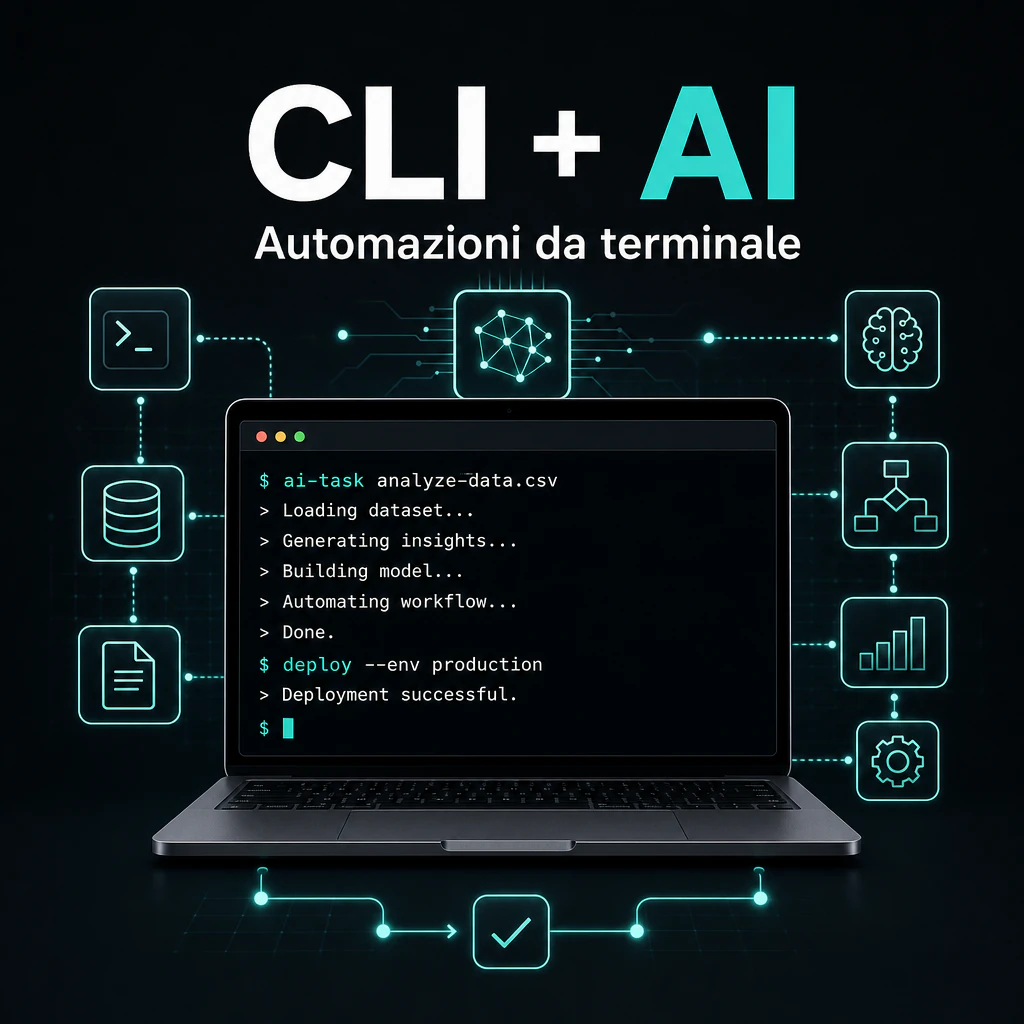
Using a CLI in the context of artificial intelligence means working with AI tools directly from the terminal, without always going through dashboards, web apps, or graphical interfaces. If you want to start with the operational basics, this guide on AI terminal can also help, as it explains the role of the terminal when AI becomes part of daily work.
A CLI, meaning command line interface, is a text-based interface. Instead of clicking buttons, menus, and windows, you write text instructions. In the AI world, this approach has become relevant again because coding agents, automation assistants, data utilities, and DevOps tools can be controlled with direct commands.
This is not just a topic for expert programmers. Those working with business processes, content, files, reports, e-commerce, or automations can increasingly encounter command-line AI tools. The point is not to use the terminal “for fashion,” but to understand when an AI CLI makes work faster, repeatable, and more controllable.
CLI and AI: practical meaning
CLI stands for Command Line Interface. In the AI context, a CLI is a way to communicate with intelligent software using text commands in the terminal.
The difference compared to a traditional AI chat is significant. In a chat, you write a request and receive a response. In an AI CLI, however, you can link the request to files, folders, scripts, repositories, logs, local databases, or existing workflows.
This makes the CLI closer to real operations. It can read a file, analyze code, generate a script, launch a command, create a report, check for errors, or prepare data for another automation.
What AI CLI means in simple words
In simple words, an AI CLI allows you to use artificial intelligence from the terminal, writing text instructions instead of using a visual interface.
A very simple example could be:
- asking the AI to analyze a CSV file;
- having it generate a command to rename many files;
- using it to explain an error that appeared in the terminal;
- having it modify a block of code;
- creating a script to automate a repetitive task.
The AI CLI does not always replace a web app. It makes sense primarily when the work already takes place near files, code, data, or technical procedures.
Difference between graphical interface and AI command line interface
A web app is more convenient when you need to read, explore, configure, or use visual functions. An AI command line interface, on the other hand, is more effective when you need to perform precise, repeatable actions integrated into a technical flow.
| Interface | When it’s useful | Main limitation |
|---|---|---|
| AI Web app | Chat, brainstorming, content, manual analysis | Less suitable for repeatable workflows on files and commands |
| AI CLI | Code, automations, data, scripts, terminal | Requires more technical attention |
| No-code | Visual business processes and API integrations | Less flexible for complex technical cases |
The best choice depends on the context. A marketing team might prefer Make.com or a dashboard. A technical team can get more control using AI from the command line. In many cases, the two coexist.
How a command line interface with AI works
An AI CLI works as a bridge between the terminal and an artificial intelligence model. The user writes a command or a request. The tool interprets the context, sends information to the AI model, and returns a usable output.
Some tools limit themselves to generating text or suggested commands. Others are more advanced and can read files, modify code, propose patches, run tests, or interact with external services. Modern tools like Codex CLI, GitHub Copilot CLI, and Claude Code clearly show this direction: AI doesn’t just stay in chat but enters the operational flow of the terminal.
This doesn’t mean AI should have total freedom. On the contrary, human control remains central. An effective AI CLI should make it clear what it wants to do, which files it will use, which commands it proposes, and what the risks are.
Commands, prompts, and responses generated from the terminal
The heart of an AI CLI is the interaction between command and prompt. You can write a very simple instruction, like “explain this error,” or a more operational request, like “analyze these logs and find the most likely anomalies.”
In many cases, the prompt also contains references to the local context: a project folder, a configuration file, an error returned by a command, a dataset to check, or a script to improve.
The difference compared to copying and pasting everything into a chat is evident. The terminal is already where many activities are performed. The AI CLI reduces manual steps and allows working closer to the source of the problem.
Terminal and artificial intelligence in business workflows
The relationship between terminal and artificial intelligence becomes interesting when AI is not used just to write texts, but to support repeatable processes.
In a B2B company, for example, an AI CLI can help prepare periodic reports, clean lead lists, check errors in automation scripts, generate drafts of technical documentation, analyze system logs, and create small internal utilities.
It’s not necessary to turn every collaborator into a developer. It’s about understanding which activities deserve a more technical flow and which can stay within visual tools.
AI CLI in operational automations
The value becomes more concrete when the CLI enters automations. An AI CLI is not just a different way to ask a model questions: it can become an operational component to link artificial intelligence, local files, scripts, and business systems.
Imagine a process where every week data is exported from CRM, e-commerce, or marketing campaigns. A person might open the files, check columns, create formulas, summarize anomalies, and prepare a report. With an AI CLI, some parts can be assisted or automated: format checking, data cleaning, insight generation, and creating a readable draft.
The CLI is particularly useful when the process must be repeated many times. If an activity is done only once, a web app may suffice. If it’s repeated every day or every week, it makes sense to ask if it can become a command, a script, or a mini-procedure.
CLI for AI automations: concrete examples
An AI automation CLI can support very different activities. Not all require complex code. Sometimes it’s enough to combine existing tools with well-defined instructions.
- analyzing CSV files and flagging incomplete rows;
- extracting recurring patterns from support tickets;
- generating product descriptions from technical data;
- checking HTML pages exported from a CMS;
- creating email drafts from a lead list;
- preparing standardized prompts for internal AI flows.
To navigate available tools, it can be useful to delve deeper into AI CLI tools, because the market is moving fast and not all tools have the same level of control, security, and maturity.
The key point is not to confuse automation with improvisation. An AI CLI can speed things up significantly, but it must be part of a clear process: input, rules, checks, output, and responsibility.
Using AI from the command line for data, files, and processes
Using AI from the command line makes sense when the work starts from concrete elements: files, folders, logs, repositories, exports, or scripts. In these cases, the terminal becomes a very direct environment.
A simple example concerns files. If you have dozens of documents with inconsistent names, an AI CLI can help propose a renaming logic. If you have a long technical report, it can extract critical points. If you have error logs, it can help identify the most likely causes.
In business work, this approach is useful especially for activities halfway between technical and operational. They aren’t simple enough to manage only with a dashboard, but they don’t require a full software project either.
Here comes an important distinction: the AI CLI helps work better on already clear processes. If the business process is confused, AI risks only making the disorder faster.
When to use an AI CLI in a company
An AI CLI is not the right tool for every department and every problem. In a company, it’s convenient to use it when there are technical, repetitive, or file-based activities, and when the team has at least a minimum familiarity with the terminal, permissions, and output control.
The main advantage is operational speed. An expert can ask the AI to read a context, propose changes, generate scripts, or explain errors without leaving the workflow. This reduces unnecessary steps and speeds up the cycle between problem, attempt, and verification.
The second advantage is repeatability. A command can be documented, saved, improved, and reused. A procedure done by hand inside a chat is harder to standardize.
Repetitive tasks, software development, and data management
AI CLIs were born primarily close to software development, but their use doesn’t stop at code. They are also useful in data management, internal automations, and the maintenance of digital flows.
In software development, they can help explain build errors, write tests, analyze parts of a project, propose refactoring, and document functions or APIs. In data management, they can check CSV or JSON files, find missing fields, prepare transformations, generate cleaning scripts, and summarize anomalies.
In marketing and operations, instead, they can be useful for preparing tidier outputs from exports, lists, reports, and structured content.
Advantages for technical teams and operational departments
For a technical team, an AI CLI is interesting because it works in the same environment where many real activities happen: repositories, terminal, tests, scripts, deploy, logs. There’s no need to copy pieces of context back and forth between different tools.
For an operational department, the advantage is different. The AI CLI can become a behind-the-scenes tool, used by a technical person to build micro-automations useful to the team. The department doesn’t necessarily have to use the terminal every day, but can benefit from faster and less manual procedures.
A concrete example: the e-commerce team exports problematic orders, reviews, or tickets. A technical person prepares an AI-assisted command that cleans the data and generates a summary. The team receives a readable output without having to touch the terminal.
This is often the most sensible approach in SMEs: not imposing technical tools on everyone, but using them to build leaner processes.
Errors to avoid with terminal and artificial intelligence
The use of terminal and artificial intelligence requires attention. The terminal is powerful because it can perform direct actions on files, configurations, and systems. For the same reason, a wrong command can cause real damage.
The first error is blindly trusting AI output. A model can propose a plausible command that is not suitable for the context. It may also not know specific system constraints, permissions, installed versions, or company rules.
The second error is giving excessive access. An AI CLI should not have broader permissions than necessary. If it needs to analyze files, there’s no need to give it access to the whole system. If it needs to work on a project, it’s better to limit it to that folder.
Unverified commands, permissions, and security
Before executing a command suggested by AI, one must understand its meaning. This is especially true for commands that delete files, change permissions, install packages, send data, or touch production configurations.
- always read the command before executing it;
- avoid destructive commands if they are not indispensable;
- test first on copies or non-critical environments;
- limit permissions and accessible folders;
- do not insert API keys, passwords, or sensitive data without control;
- keep track of changes made.
Security is not a technical detail. In a B2B context, an AI CLI can come into contact with customer data, price lists, exports, proprietary code, or internal configurations. A clear policy is needed.
AI output, human control, and fragile automation risk
Another frequent error is immediately turning an AI suggestion into a stable automation. First, it must be verified that the output is correct, repeatable, and manageable in case of error.
Fragile automations are born when inputs are not standardized, there are no error checks, the AI receives vague instructions, human review is missing in critical steps, or it’s not clear who is responsible for the result.
This also applies to free or open-source tools. Before using a free AI CLI in a business process, it’s better to evaluate limits, privacy, output quality, updates, and terms of use.
Free doesn’t automatically mean suitable for the company. It can be perfect for tests, training, and prototypes, but not always for sensitive or recurring processes.
AI CLI, no-code, and web interfaces: which to choose
The choice between AI CLI, no-code, and web interfaces should not be ideological. Every tool has a role. The right question is: where does the work happen, who needs to use it, and how repeatable must it be?
An AI web app is often better for exploratory activities: writing, reasoning, comparing ideas, creating drafts, analyzing a text. It’s accessible, simple, and suitable even for those without technical skills.
A no-code platform like Make.com is more suitable when different services need to be linked: CRM, email, spreadsheets, e-commerce, forms, notifications, databases, and APIs. The advantage is the visibility of the flow and the visual management of the steps.
An AI CLI is more suitable when the work is close to code, files, terminal, scripts, logs, or repositories. It offers more control but requires more responsibility.
When to prefer Make.com, visual apps, or dashboards
It’s better to prefer visual tools when the process must also be managed by non-technical people. If a marketing team needs to control campaigns, leads, emails, or content, a dashboard is often clearer than a CLI.
Make.com and similar tools are useful when the automation involves many external apps: saving leads from a form into a CRM, sending internal notifications, updating a Google sheet, creating tasks in a project manager, synchronizing data between e-commerce and management software, or triggering automatic emails after an event.
In these cases, the CLI can serve for side activities, such as preparing data or generating scripts, but the heart of the process remains more readable in a visual environment.
When to use AI from the command line to scale workflows
It’s convenient to use AI from the command line when the process requires technical control, speed, and the possibility of repetition. This is the case for workflows on files, code, data, or recurring checks.
An AI CLI can scale well when the team already works with repositories or the terminal, inputs are structured, activities repeat often, there’s a need to integrate AI into existing scripts, or every step must be controlled.
In development and advanced automation, open-source CLI agents are also growing. Some allow working on local projects, configuring external tools, and adapting the assistant’s behavior to the team’s flow. To evaluate this path, it’s useful to understand what an open source CLI coding agent offers and what responsibilities it entails in terms of maintenance, security, and control.
The practical decision is this: if simplicity for business users is needed, web apps or no-code are better. If control over files, code, and technical processes is needed, the AI CLI can be much more effective. If a robust business process is needed, the best solution is often to combine the two worlds: visual automations for the main flow and AI CLI for the technical, repetitive, or high-control parts.
Practical criteria for choosing an AI CLI
Before adopting an AI CLI in a company, it’s convenient to evaluate some practical criteria. It’s not enough for the tool to be popular or recent. It must be suitable for the context, the team’s technical level, and the type of data handled.
The first criterion is control. Does the tool clearly show what it’s doing? Does it ask for confirmation before modifying files or launching commands? Does it allow limiting access to a folder or a specific project?
The second criterion is the quality of integration. A good AI CLI must fit well into the existing flow. If the team uses Git, local environments, scripts, automatic tests, or DevOps procedures, the tool must respect those habits.
Privacy, context, and data management
Every time an AI CLI is used, one must ask which data is being read, sent, or processed. The issue is particularly delicate when there is customer data, commercial information, proprietary code, or internal documents.
- which files can the tool read?
- what data is sent to the AI model?
- is there a local mode or limited context?
- how are API keys and credentials managed?
- can sensitive folders be excluded?
- is the tool suitable for professional use?
These questions apply even when the tool seems simple. In the terminal, a small command can have access to much more context than it seems.
Workflow, documentation, and maintenance
An AI CLI brings value if it’s part of a documented workflow. If every person uses it differently, without rules, the risk is creating procedures that are hard to maintain.
For professional use, it’s useful to define which activities can be assisted by AI, which commands require human review, which folders or data are excluded, how recurring prompts and procedures are saved, how output quality is verified, and who approves changes to critical processes.
In this way, the AI CLI doesn’t remain a personal experiment but becomes a governable tool. At that point, it’s no longer just a technical definition: it becomes an operational choice to reduce manual work while maintaining control, security, and quality.